If you don't want to use a 3rd party FTP Software, you can use the SiteWorx's inbuilt File Manager.
1. Log into your SiteWorx account. (e.g. www.example.com:2443/siteworx/ )
2. Under SiteWorx Menu, choose the File Manager option. 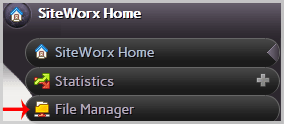
3. Navigate to the directory where you want to upload your files. For example, should you wish to upload your file to the public HTML folder, you need to go to /Html first. On the left side, you can see a list of directories. Double Click on the HTML folder.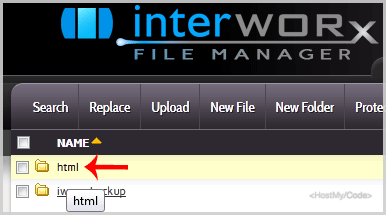
4. Click on the Upload menu in the Top header section, click on the Browse button and select the file you want to upload from your PC. After you have selected the file, click on the Upload button to upload it.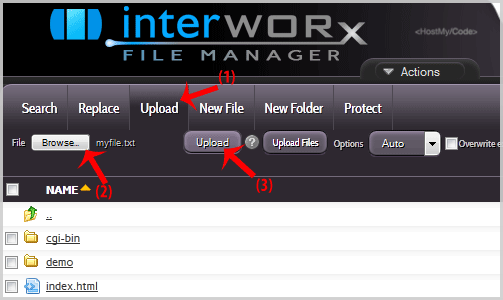
الأكثر زيارة
How to Reset my InterWorx (SiteWorx) Account Password?
After you access your SiteWorx account, follow these steps to reset your password:1. Log into...
How to update your SiteWorx Email Address?
If you want to change your SiteWorx email address, then follow these steps.1. Log into your...
Change Language of your SiteWorx Account?
SiteWorx supports a lot of languages, and if you want to change your SiteWorx language to your...
How to Access AWStats in SiteWorx?
1. Log into your SiteWorx account. (e.g. www.example.com:2443/siteworx/ )2. Under SiteWorx Menu,...
How to Access Webalizer in SiteWorx?
1. Log into your SiteWorx account. (e.g. www.example.com:2443/siteworx/ )2. Under SiteWorx Menu,...